Moving your digital life to a new iPhone does not have to be complicated. Apple provides several built-in pathways to migrate contacts, photos, messages, apps, and settings between devices. The right method depends on whether you have a computer available, how much data you need to move, and whether you prefer wireless or cable-based transfers.
This guide walks through each officially supported approach, from the direct device-to-device Quick Start feature to cloud-based and computer-backed alternatives. Understanding what each method requires and transfers helps you choose the most efficient route for your situation.
How Do I Transfer Data from Old iPhone to New iPhone Using Quick Start?
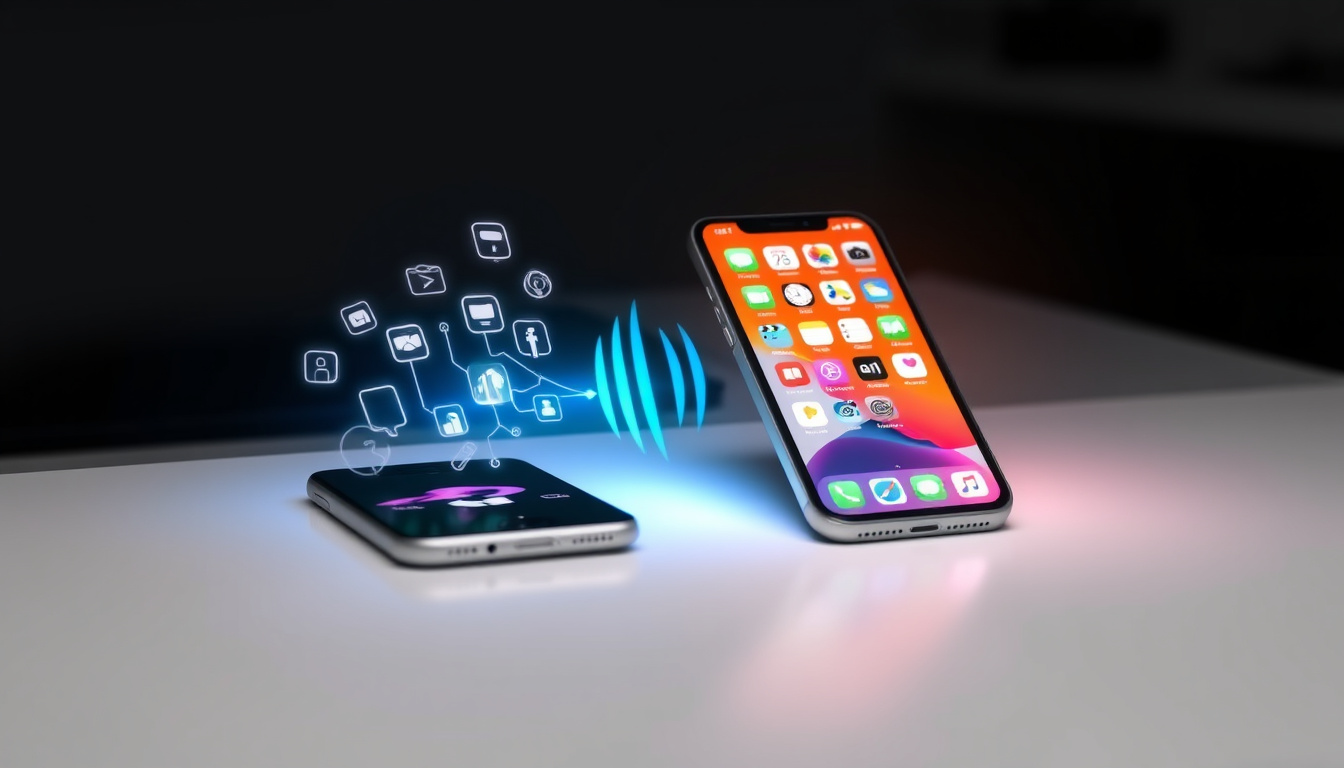
Quick Start stands out as Apple’s preferred wireless method for moving everything to a new device. It creates a direct clone by transferring data directly between the two iPhones using Wi-Fi and Bluetooth, without requiring iCloud storage or a computer. Apple’s official Quick Start documentation provides the technical foundation for this process.
The process begins automatically when you power on the new iPhone near your existing device. A prompt appears on the old iPhone asking whether you want to set up the new device. After tapping Continue, you authenticate with your Apple ID on the new phone and select the option to transfer from iPhone. The system then copies all data directly, creating an identical setup on the new device.
Both devices must run iOS 12.4 or later for full compatibility. The old iPhone needs to remain powered on and within range throughout the transfer process.
At a Glance: Comparison of Available Methods
| Method | Typical Time | Data Included | Best Suited For |
|---|---|---|---|
| Quick Start | 30 minutes to 2 hours | Everything | Wireless new setups |
| iCloud Backup | Hours to days | Most data | Remote transfers |
| Computer (Finder/iTunes) | 1 to 4 hours | Full backup | No Wi-Fi available |
| AirDrop | Varies by file size | Selective files only | Small-to-medium transfers |
Key Insights Before You Begin
- Quick Start is the fastest option for direct device-to-device transfers without cloud storage or cables.
- iCloud backup requires sufficient storage space—Apple provides 5GB free, which fills quickly for users with large photo libraries.
- Always update both devices to the latest iOS version before starting any transfer method.
- Passwords and Keychain data require separate configuration after the transfer completes.
- Health data transfers only when creating an encrypted backup through Finder or iTunes.
- Large transfers exceeding 100GB may take several hours over wireless connections.
- Third-party apps retain logins if they store credentials in iCloud; otherwise, you may need to sign in again.
iOS and Device Compatibility
| Requirement | Details |
|---|---|
| iOS Version | Both iPhones must run iOS 12.4 or later for Quick Start; iOS 11 minimum for basic transfers |
| Apple ID | Same Apple ID required for apps, messages, and iCloud services |
| Storage Space | New iPhone must have available space exceeding the old device data size |
| Connection Type | Stable Wi-Fi and Bluetooth enabled for wireless; USB cable for computer transfers |
| Battery Level | Both devices should have adequate charge or remain connected to power during transfer |
| Device Condition | Old iPhone must be functional; reset or repair may be needed if device is damaged |
How to Transfer iPhone Data Without iCloud?
Users without sufficient iCloud storage or those preferring offline methods have two solid alternatives. The computer-based approach using Finder or iTunes remains the most reliable offline option, while AirDrop handles selective file transfers for users who only need specific photos, contacts, or documents.
Using a Computer with Finder or iTunes
On Mac computers running macOS Catalina or later, Finder serves as the backup and restore interface. Connect the old iPhone via USB cable, select it from the Finder sidebar, and choose the option to encrypt the local backup before clicking Back Up Now. This encrypted backup preserves health data and saved passwords that would otherwise be excluded. Apple’s official Finder backup guide covers the complete workflow for Mac users.
Windows users with iTunes installed or the Apple Devices app perform the same workflow through that software. The process remains identical: connect the old device, create an encrypted backup, then connect the new iPhone and select restore from that backup during setup. Apple Devices for Windows provides the necessary software for PC-based transfers.
Using a Lightning or USB-C cable provides the fastest and most stable connection. Wireless backups through Finder or iTunes are possible but transfer significantly slower than cable-based options.
Using AirDrop for Selective Transfers
AirDrop works well for moving specific files when a full device clone is unnecessary. Enable AirDrop on both devices by opening Control Center, tapping the connectivity panel, and selecting Everyone or Contacts Only. Then open the Photos app, Files app, or Contacts, select the items you want to send, and tap the share icon to send via AirDrop. Apple’s AirDrop support documentation explains the feature in detail for users unfamiliar with the process.
This method suits users who only need to transfer recent photos, a few contacts, or specific documents. It does not move apps, settings, or messages, making it a complement to rather than a replacement for the primary transfer methods. For more information on selective transfers, you can explore our complete guide to device management.
What Data Gets Transferred and What Are the Requirements?
Understanding exactly what moves during a transfer helps set expectations and identify any manual steps needed afterward. The standard transfer covers most user data, though certain categories require additional attention or specific conditions.
Standard Data Categories
The following typically transfers successfully through Quick Start, iCloud backup, or computer restore: contacts, photos, videos, messages (including message history), apps and their settings, calendar entries, notes, Safari browsing data, and wallpaper preferences.
Most first-party Apple apps reinstall with their data intact. Third-party applications restore as well, though some may require you to sign in again depending on how they store credentials.
Passwords stored in Keychain and DRM-protected content (such as music or books purchased from iTunes) do not transfer automatically. Health data requires an encrypted backup to restore properly.
Apple ID Requirements
The same Apple ID used on the old iPhone must authenticate the new device for apps, messages, and iCloud services. During Quick Start, you authenticate on the new device using your existing Apple ID credentials. If you use a different Apple ID, some data may not sync properly or could require re-downloading purchased content from the App Store.
Family Sharing memberships, subscriptions, and purchased content remain tied to the Apple ID regardless of which device hosts them. For guidance on keeping your accounts organized, you might find our overview of related technology management topics helpful.
How Long Does iPhone Data Transfer Take and What If It Fails?
Transfer duration varies considerably based on the method chosen, the amount of data being moved, and the connection quality. Wireless methods tend to take longer than cable-based transfers, especially when moving large photo libraries or extensive app data.
Typical Transfer Durations
Quick Start typically completes in 30 minutes to 2 hours for average data amounts. Transfers exceeding 100GB can extend to several hours, with downloads sometimes continuing after the initial setup finishes on the new device. iCloud backups may take hours to days depending on your internet upload speed and whether you are relying on cellular data.
Computer-based transfers through Finder or iTunes generally complete within 1 to 4 hours and often finish faster than wireless options for large datasets. The wired connection provides consistent throughput without the interference or distance limitations of Bluetooth and Wi-Fi.
Troubleshooting Failed or Stuck Transfers
If the transfer process stalls or fails to complete, several troubleshooting steps often resolve the issue. First, verify that Wi-Fi and Bluetooth remain enabled on both devices. Restart both the old and new iPhones, then disable any active VPN connection before attempting the transfer again.
For Quick Start specifically, turning off Find My on the old iPhone before beginning can prevent authentication conflicts. Apple’s Find My iPhone documentation explains how to disable this feature properly. Users transferring large amounts of data exceeding 100GB should consider using a computer with Finder or iTunes instead, as wireless transfers may time out during extended sessions.
When transfer issues persist despite these steps, reset the new iPhone setup and try again. Some carriers provide specific instructions—Verizon, for example, recommends disabling Find My before attempting a transfer.
iOS Version Considerations
Ensuring both devices run current iOS versions prevents compatibility problems during transfer. Apple consistently updates iOS with improvements and bug fixes; running the latest version before transferring helps avoid known issues. Checking for iOS updates through your Mac’s settings menu provides the most reliable method to obtain the newest software.
Devices running iOS 11 or later support basic transfers, while iOS 16 or later unlocks the newest features and smoother migration flows. Incompatible applications from the old device prompt re-download from the App Store rather than causing transfer failures.
Step-by-Step Transfer Process Timeline
The following sequence outlines each phase of a typical Quick Start transfer from preparation through final setup. Times vary based on data volume and connection quality.
- Prepare both devices: Update iOS on the old iPhone, ensure both devices have adequate battery or power connection, and enable Wi-Fi and Bluetooth on both.
- Position devices near each other: Place the old and new iPhones within close range, typically within arm’s reach, to maintain strong Bluetooth and Wi-Fi Direct communication.
- Initiate Quick Start prompt: Power on the new iPhone. The old device displays a pairing notification with an animated image—tap Continue to proceed.
- Authenticate with Apple ID: On the new device, enter your Apple ID credentials when prompted to link your account and services.
- Enter passcode: The new iPhone requests the six-digit passcode from your old device or prompts you to set a new one.
- Select transfer method: Choose “Transfer from iPhone” to copy all data directly, or “Restore from iCloud Backup” if using the cloud method.
- Wait for data transfer: Both devices display progress indicators. The old device should remain still and powered on until completion.
- Complete new device setup: Follow remaining on-screen prompts to configure Face ID, Siri, and other preferences on the new iPhone.
- Verify transferred content: Check that contacts, messages, photos, and key apps appear correctly. Re-download any apps that were skipped due to incompatibility.
Established Facts Versus Areas of Uncertainty
Apple’s officially documented methods have proven reliable when all requirements are met. The following summarizes what is definitively known versus what may vary by situation.
| Established Information | Situational or Uncertain |
|---|---|
| Quick Start requires iOS 12.4+ on both devices | Exact transfer time depends on data size and network conditions |
| iCloud free tier provides 5GB of storage | Third-party app data retention varies by developer implementation |
| Encrypted computer backups preserve health data and Keychain | Some carrier-specific issues may require custom troubleshooting steps |
| Quick Start transfers apps with logins intact | DRM content transfer success depends on regional licensing restrictions |
| Finder/iTunes works across most iOS versions | Post-transfer app compatibility with newer iOS versions may vary |
Why These Transfer Methods Exist and What They Mean for Users
Apple developed multiple transfer pathways to accommodate different user circumstances and preferences. Quick Start addresses the common scenario of upgrading to a new iPhone without requiring additional hardware or cloud subscriptions. The feature emerged from iOS 12.4, building on earlier migration tools to enable direct device-to-device cloning.
The iCloud backup option serves users who prefer remote transfers or who may not have immediate access to their old device after the switch. Computer-based methods exist for users with limited internet bandwidth or those who prefer local control over their backup files. Each approach reflects Apple’s effort to provide flexibility while maintaining data integrity.
Sources and Documentation
The information in this guide draws from official Apple support documentation, user community discussions, and verified technical resources. Key references include Apple’s official transfer guides and iOS compatibility documentation.
Apple officially recommends Quick Start as the preferred method for transferring data directly between devices, with iCloud backup as the wireless alternative and Finder or iTunes for computer-based migrations. All methods support the same core data categories, though encrypted backups through Finder or iTunes are required for health data and Keychain preservation.
— Apple Support Documentation
Summary and Next Steps
Transferring data from an old iPhone to a new one works reliably through Quick Start, iCloud backup, or computer-based restore. Quick Start offers the simplest wireless experience for users with both devices available. iCloud backup suits those without a computer or who prefer cloud-based migration. Finder or iTunes provides the fastest option for large transfers and is required for encrypted backups that preserve health data.
After completing the transfer, verify that apps, photos, and messages appear correctly. Enable iCloud backup on the new device to protect future data, and consider whether any third-party apps need re-login or reconfiguration. For additional guidance on managing your device setup, explore our related resources.
Frequently Asked Questions
How long does iPhone data transfer take?
Transfer times range from 30 minutes to several hours depending on data volume and method. Quick Start typically takes 30 minutes to 2 hours. iCloud backups may extend to hours or days based on internet speed. Computer transfers through Finder or iTunes generally complete within 1 to 4 hours.
What data gets transferred in an iPhone to iPhone move?
Standard transfers include contacts, photos, videos, messages, apps with their settings, calendars, notes, and Safari data. Passwords and Keychain require separate configuration. Health data transfers only with encrypted backups through Finder or iTunes.
How do I transfer photos and apps specifically?
Photos transfer fully through Quick Start or iCloud backup. For selective transfers, use AirDrop to send specific photos between devices. Apps reinstall automatically but may require re-login if credentials are not stored in iCloud.
Do I need the same Apple ID for transfer?
Yes, using the same Apple ID ensures apps, messages, and iCloud services link properly after the transfer. Different Apple IDs may require re-downloading purchased content from the App Store.
What if Quick Start does not work?
Restart both devices, ensure Wi-Fi and Bluetooth are enabled, disable VPN, and turn off Find My on the old iPhone. For large transfers exceeding 100GB, consider using Finder or iTunes with a cable instead.
Can I transfer data without iCloud?
Yes. Quick Start transfers data directly between devices without iCloud. Computer-based methods using Finder or iTunes also work completely offline. AirDrop handles selective file transfers without requiring cloud storage.
Is an encrypted backup required?
Standard backups omit health data and Keychain. Encrypted backups through Finder or iTunes preserve these items. Only encrypted backups include saved passwords and health records.

Thomas Walsh leads fact-checking, source verification and corrections at Australia Voice.